Digital Onboarding

Non-face-to-face customer onboarding — on one evidence trail.

OTP-verified intake, multi-step KYC capture, document upload, PEP and third-party checks, and a back-office case manager — all on the same audit ledger your regulator will read.

See it in action

2 minutes. End-to-end onboarding.

A real walk-through of the customer journey — from intake to KYC capture to the back-office case file.

Customer Journey

Four steps. One mobile screen. Full audit trail.

The customer never visits a branch. Each form field, OTP, document and consent lands in the same case file your reviewer opens minutes later.

Live onboarding 4 guided steps OTP email verification Smart address capture
Step 01

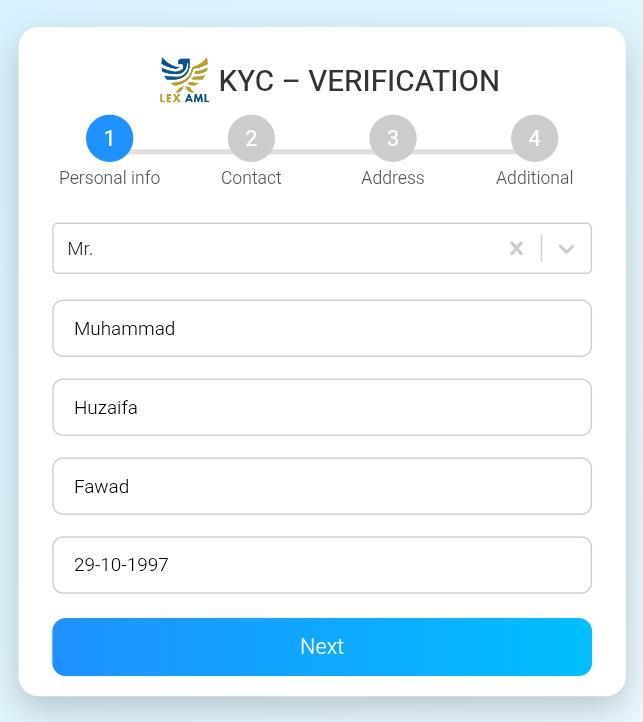
Personal Info

  • Title (Mr / Ms / Mrs)
  • First, middle, last name
  • Date of birth
Step 02

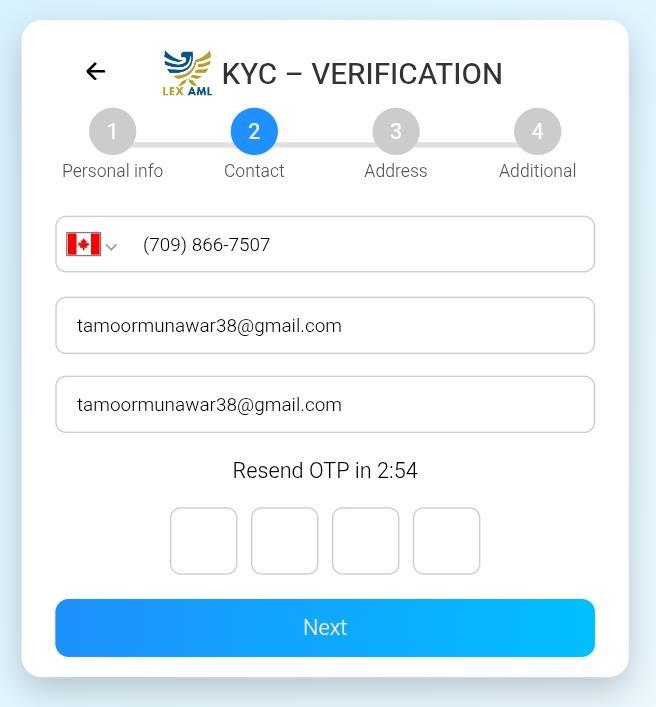
Contact & OTP

  • Mobile number
  • Email + confirm
  • 4-digit OTP verification
Step 03

Address

  • Geolocation pin
  • Nationality & residency
  • Address, city, province, postal, PO box
Step 04

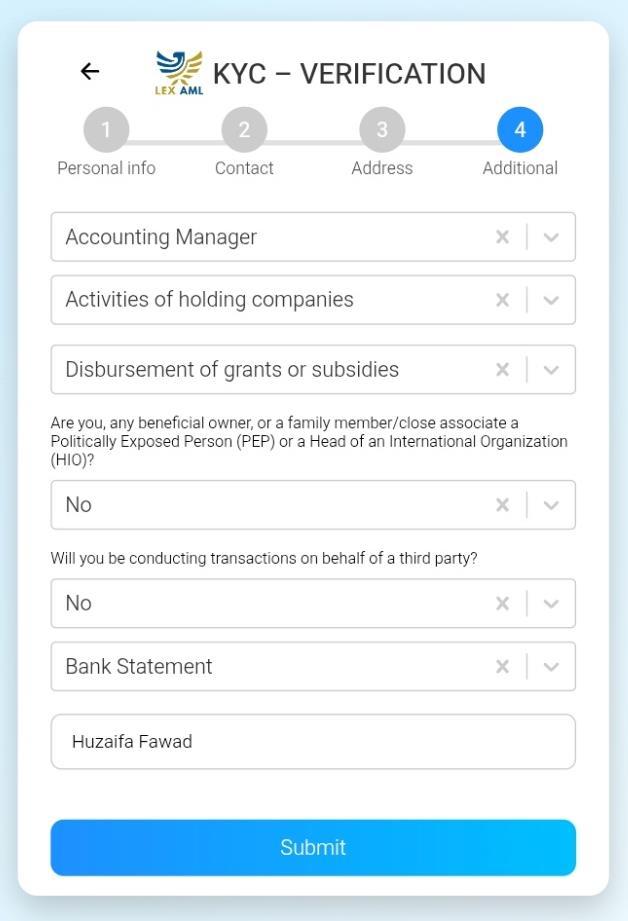
Employment & Risk

  • Job title & industry
  • Purpose of account
  • PEP / third-party flags
  • Source of funds · employer
KYC Verification

Three taps to a verified identity.

Pick the ID type, capture front and back with the on-device camera, then a selfie for liveness. Every image is stored alongside the case — screens below are from the live product.

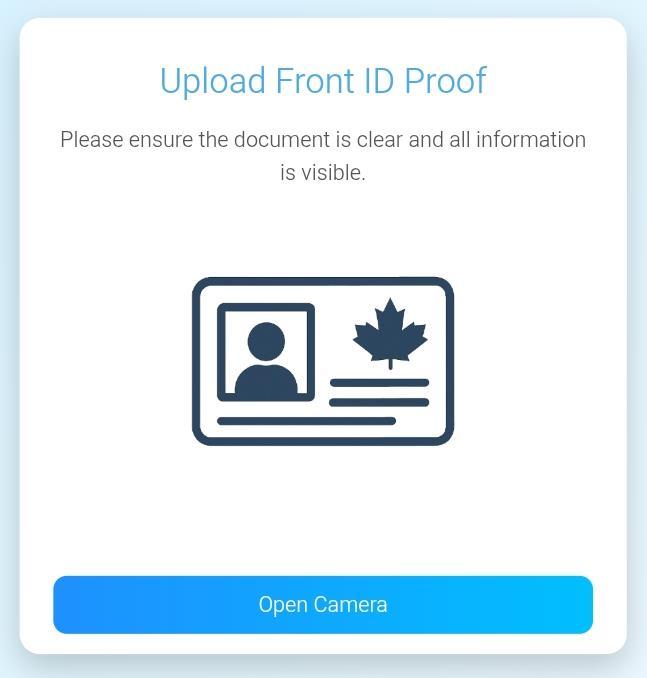
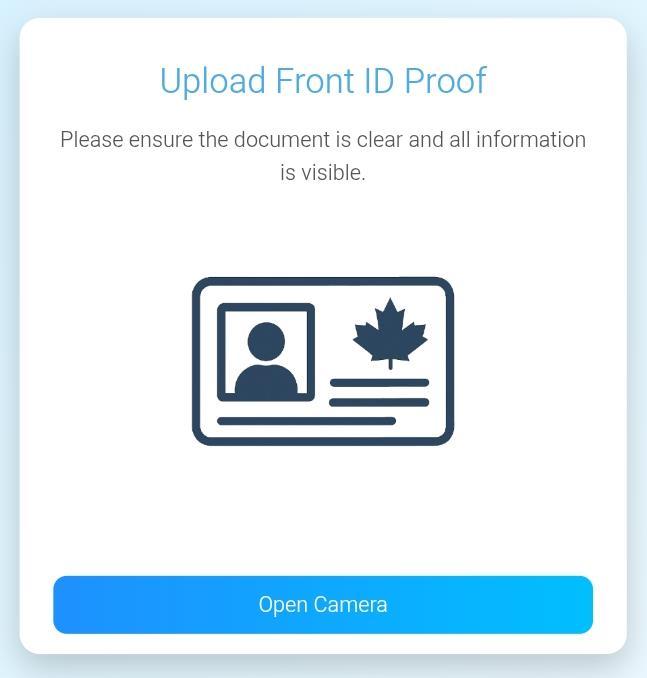
Upload front of ID
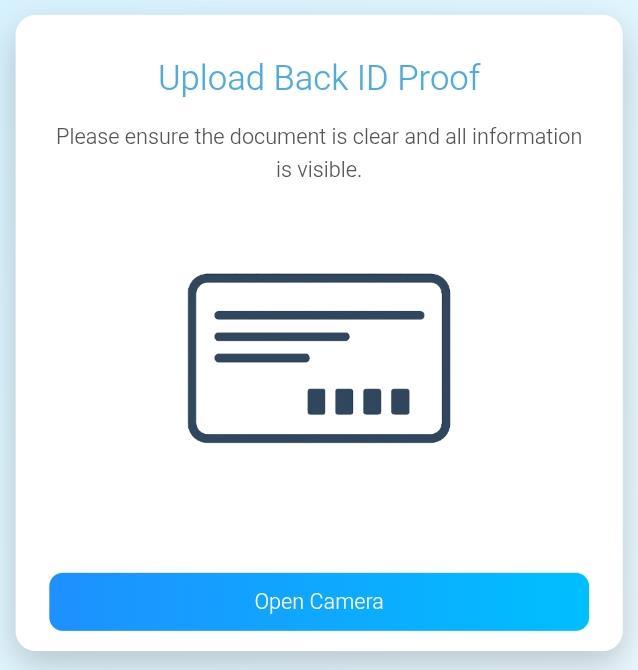
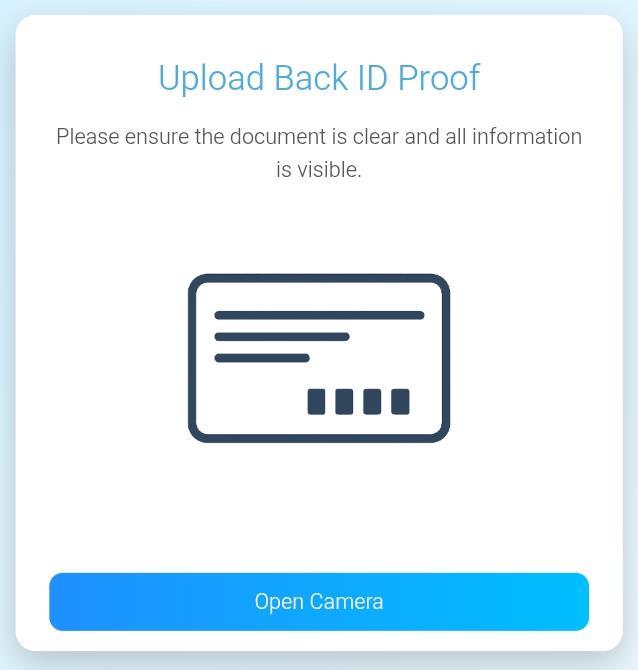
Upload back of ID
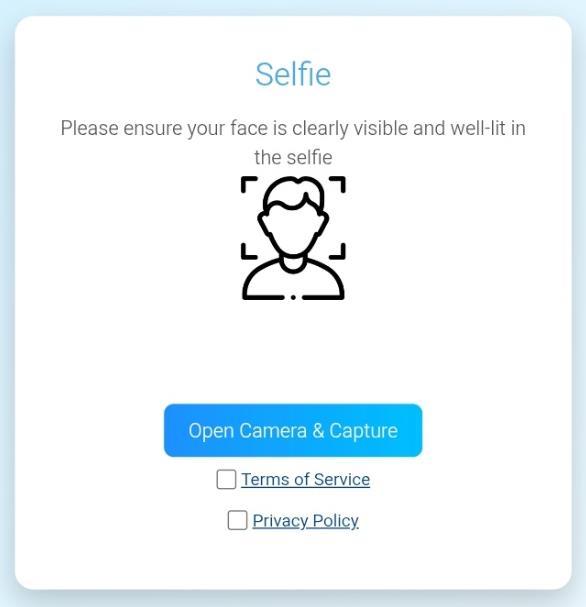
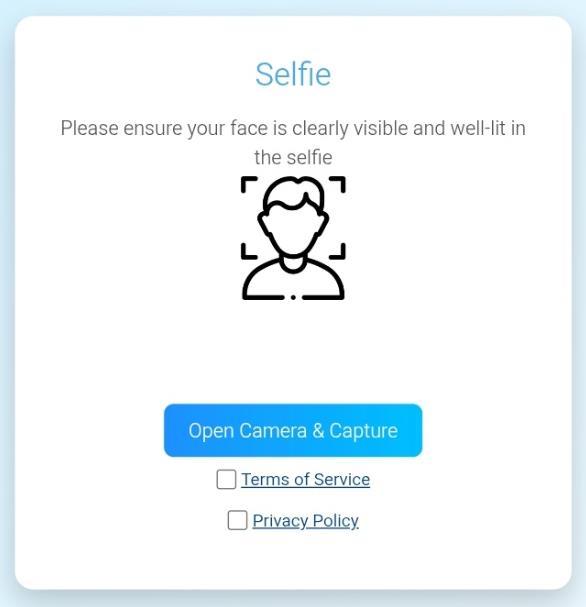
Selfie capture with face frame
1
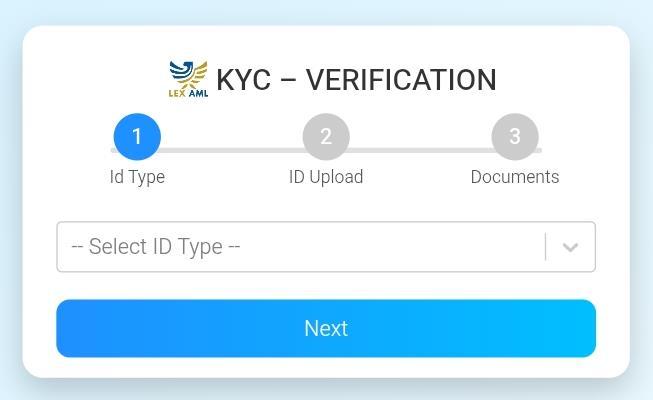
Choose ID type & front capture

Customer chooses the ID type (passport, national ID, driver's licence, residence card) and captures the front with the on-device camera. Auto-frame and glare detection happen before upload.

2
Back of ID

Same flow for the back of the document. Legibility is checked before the customer can advance — no blurry captures end up in the case file.

3
Selfie + liveness

A guided selfie capture with face-frame alignment. Liveness check compares against the ID photo and screens for deepfake / injection attacks before the case is created.

Product Walkthrough

The actual product. Screen by screen.

Every screen of the LiveEx-Shield non-face-to-face onboarding module — the customer's mobile flow on top, the reviewer's back-office below. 22 screens, end to end.

Customer side Mobile capture — 4 steps + 3-step KYC + confirmation

Phone-first. The customer never visits a branch. Every keystroke, OTP, photo and consent lands in the same case file your reviewer opens minutes later.

01
Title, name, date of birth
Step 01 · Personal Info
Title, name, date of birth

Customer picks a title (Mr / Ms / Mrs) and enters first, middle, last name and DOB. The 4-step progress bar is anchored at the top so they always know what's next.
02
Mobile, email and 4-digit OTP
Step 02 · Contact & OTP
Mobile, email and 4-digit OTP

Country-flag mobile picker, email entered twice for confirmation, then a 4-digit OTP delivered to that email. A visible resend timer prevents OTP spam.

03
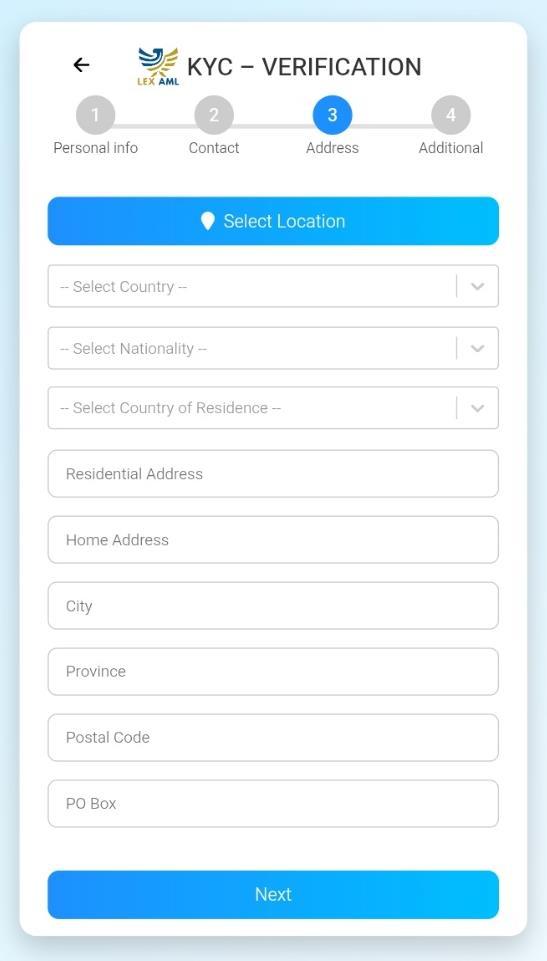
Location, residency and full address
Step 03 · Address
Location, residency and full address

A geolocation button to capture current location, then structured fields: country, nationality, country of residence, residential address, home address, city, province, postal code, PO box. Clean data, not free text.

04
Job, industry, PEP, third-party, source of funds
Step 04 · Additional
Job, industry, PEP, third-party, source of funds

Profession, business activity, account purpose. Self-declared PEP and third-party flags. Source of funds and employer name. Submit closes the registration phase.

05
Choose the document to capture
KYC 1 of 3 · Select ID Type
Choose the document to capture

Three-step KYC sub-flow begins. The customer picks the ID type they have — passport, national ID, driver's licence, residence card — before camera capture starts.

06
Capture the front of the document
KYC 2 of 3 · Front of ID
Capture the front of the document

On-device camera with auto-frame alignment. Anti-glare and blur detection block submission of unreadable images before they ever land in the case file.

07
Capture the back of the document
KYC 2 of 3 · Back of ID
Capture the back of the document

Same flow for the back side. Legibility is checked before the customer can advance — no blurry captures, no missing fields.

08
Guided selfie with face frame
KYC 2 of 3 · Selfie + liveness
Guided selfie with face frame

A guided selfie capture with face-frame alignment. Liveness check compares against the ID photo and screens for deepfake / injection attacks before the record is finalised.

09
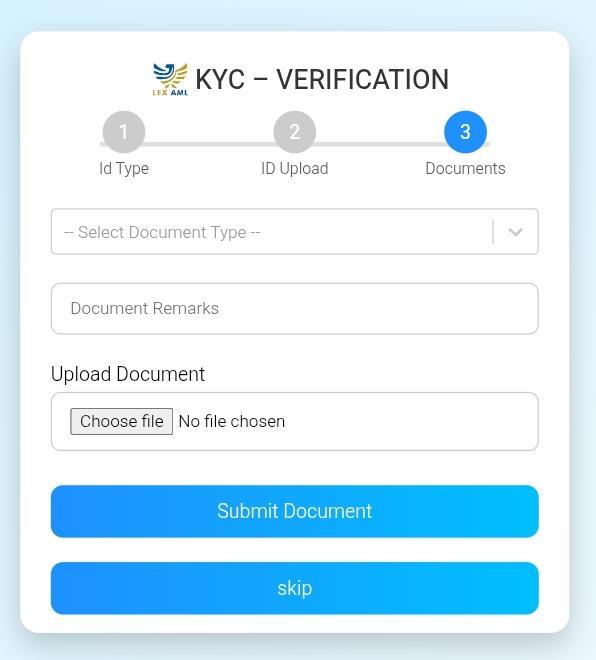
Upload supporting documents
KYC 3 of 3 · Documents (optional)
Upload supporting documents

Optional supporting documents — proof of address, bank statement, employment letter, anything required by jurisdiction. Customer can also skip and let the reviewer request later.

10
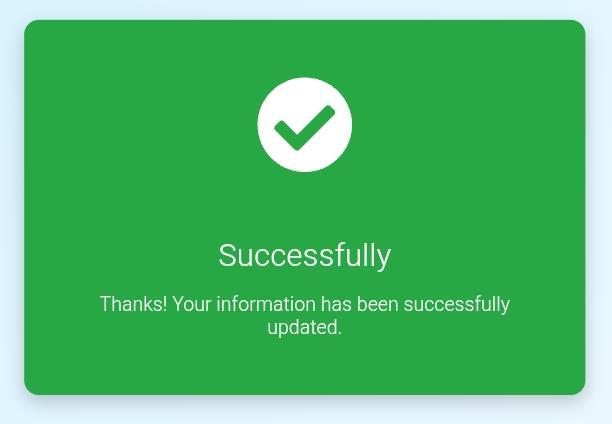
Successfully — thank-you card
Customer view · Submitted
Successfully — thank-you card

On submit, the customer sees a clean confirmation card and the journey ends. From their side, onboarding is done; from yours, the case has just begun.

11
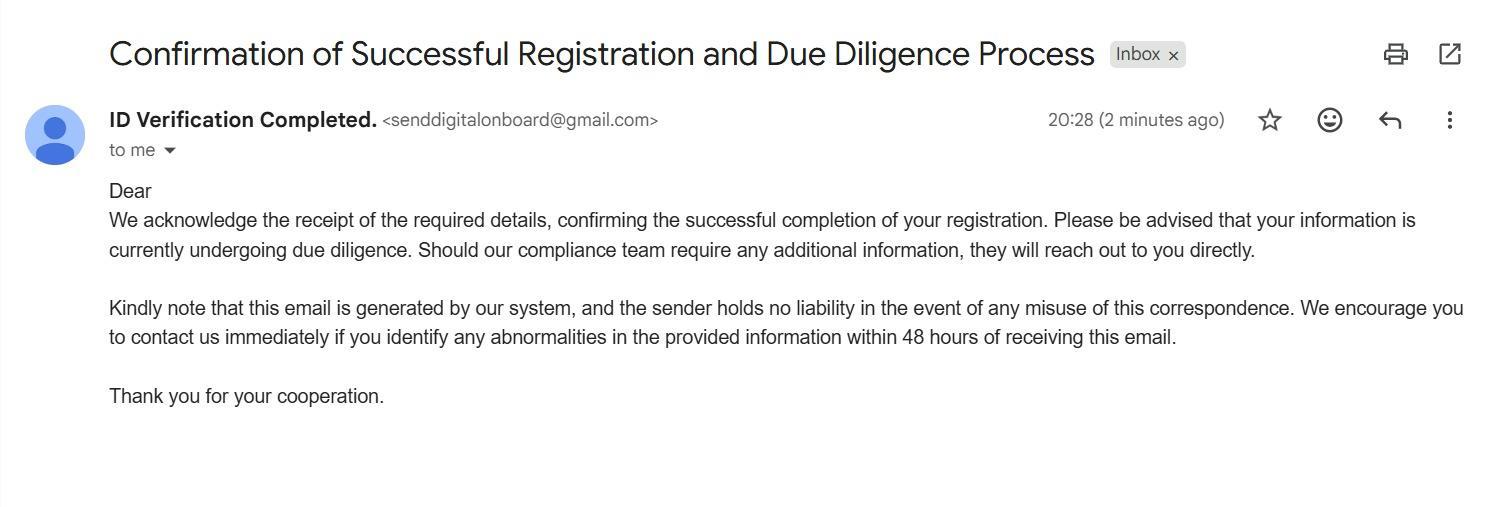
Registration confirmed by email
Auto-email · Submission
Registration confirmed by email

Automatically generated email — "Confirmation of Successful Registration and Due Diligence Process". Sender, timestamp and body are written to the audit log.

Back office Reviewer — from intake to accept

Same database, same audit ledger, different surface. Status pills, side-by-side review, RBA + sanction findings, modal confirmations — nothing happens silently.

01
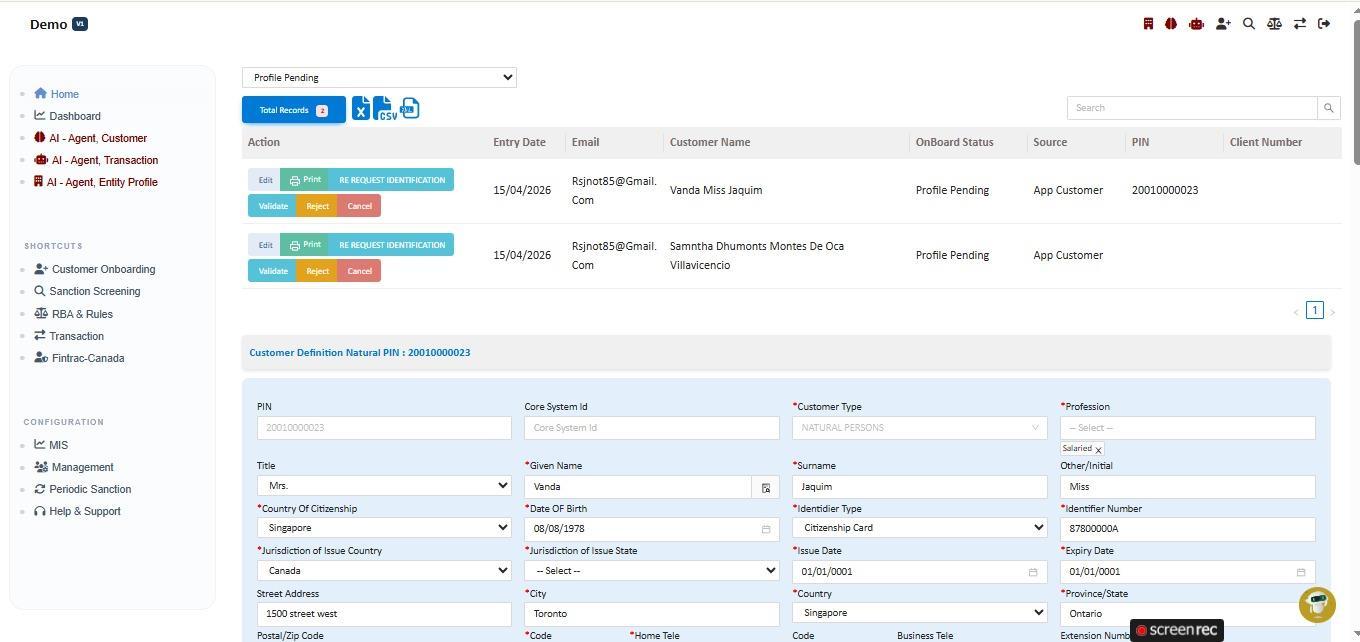
Validate, reject or request more info
Reviewer · Profile Pending
Validate, reject or request more info

Submission lands in the Profile Pending queue. Clicking Edit opens the full Customer Definition record — PIN, citizenship, ID details, address, profession — for line-by-line review.

02
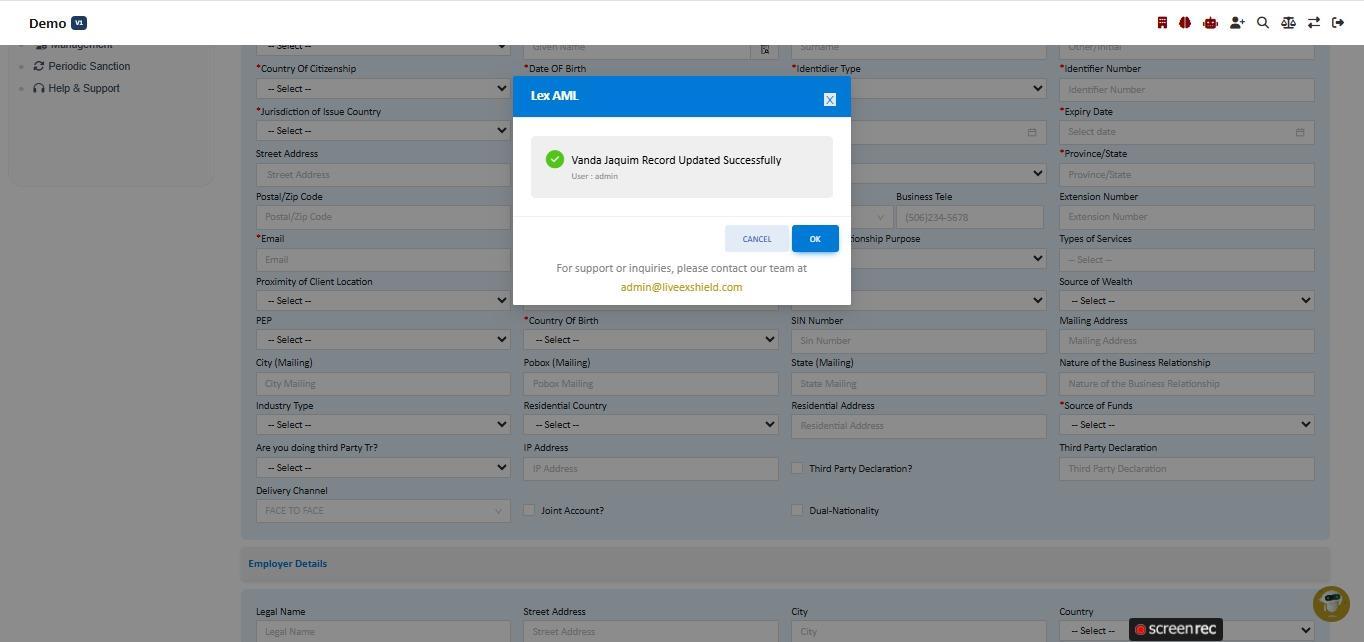
Save with audit trail
Reviewer · Record Updated
Save with audit trail

Every save triggers a Lex AML confirmation modal — username, timestamp, and support contact (admin@liveexshield.com) all surfaced. Nothing changes silently.

03
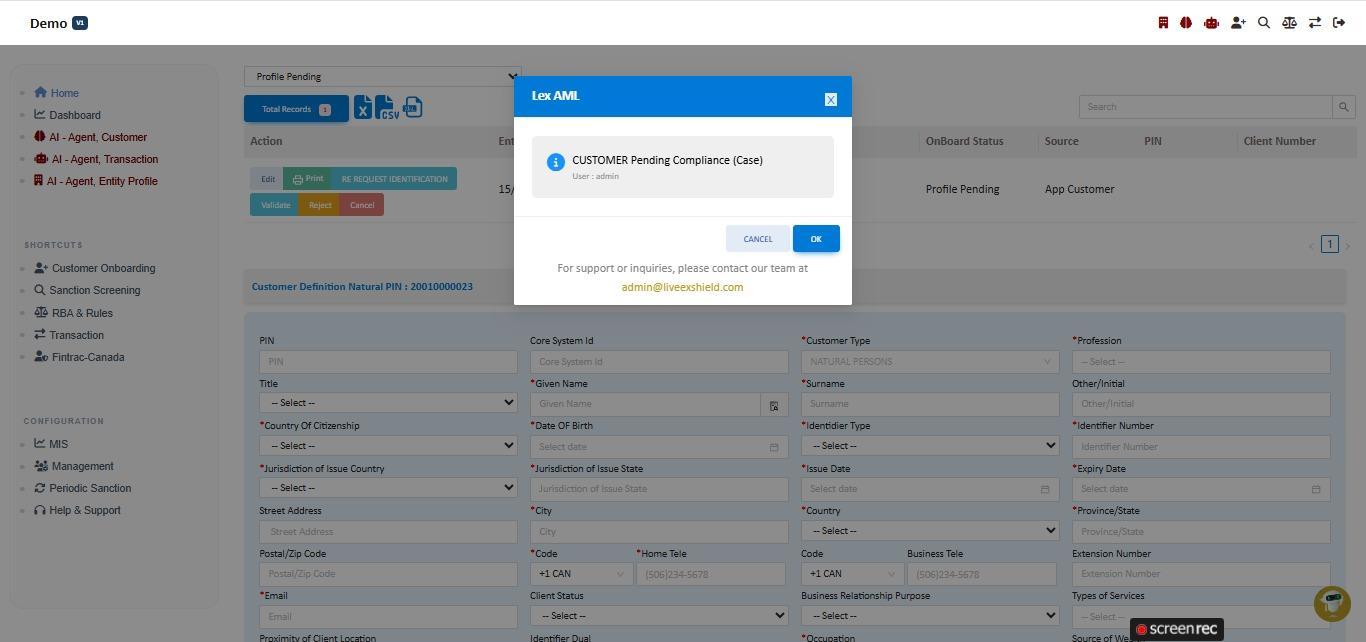
Customer routed to compliance
Reviewer · Pending Compliance
Customer routed to compliance

Once a reviewer flags a profile, it transitions to Pending Compliance and is routed to the compliance team's queue. The modal stamps the user who initiated the routing.

04
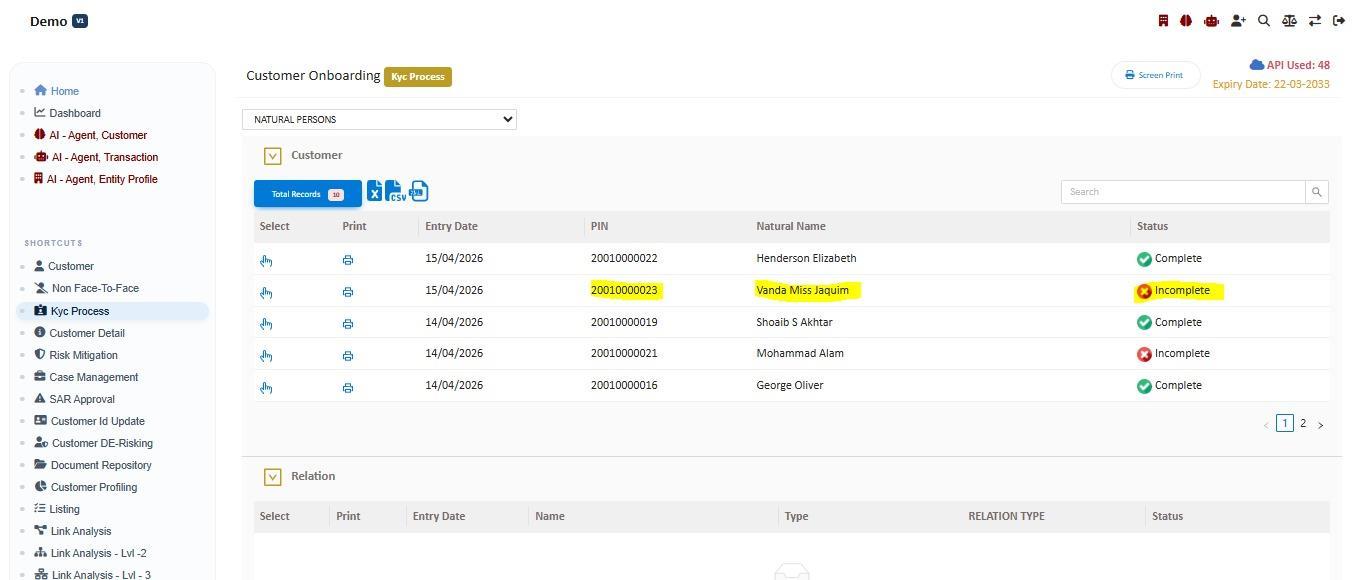
Incomplete records pinned to the queue
Reviewer · KYC Process
Incomplete records pinned to the queue

KYC Process view shows every customer's KYC status at a glance. Incomplete pills tell the reviewer who still owes documents; the Non Face-To-Face shortcut on the left rail jumps to fresh submissions.

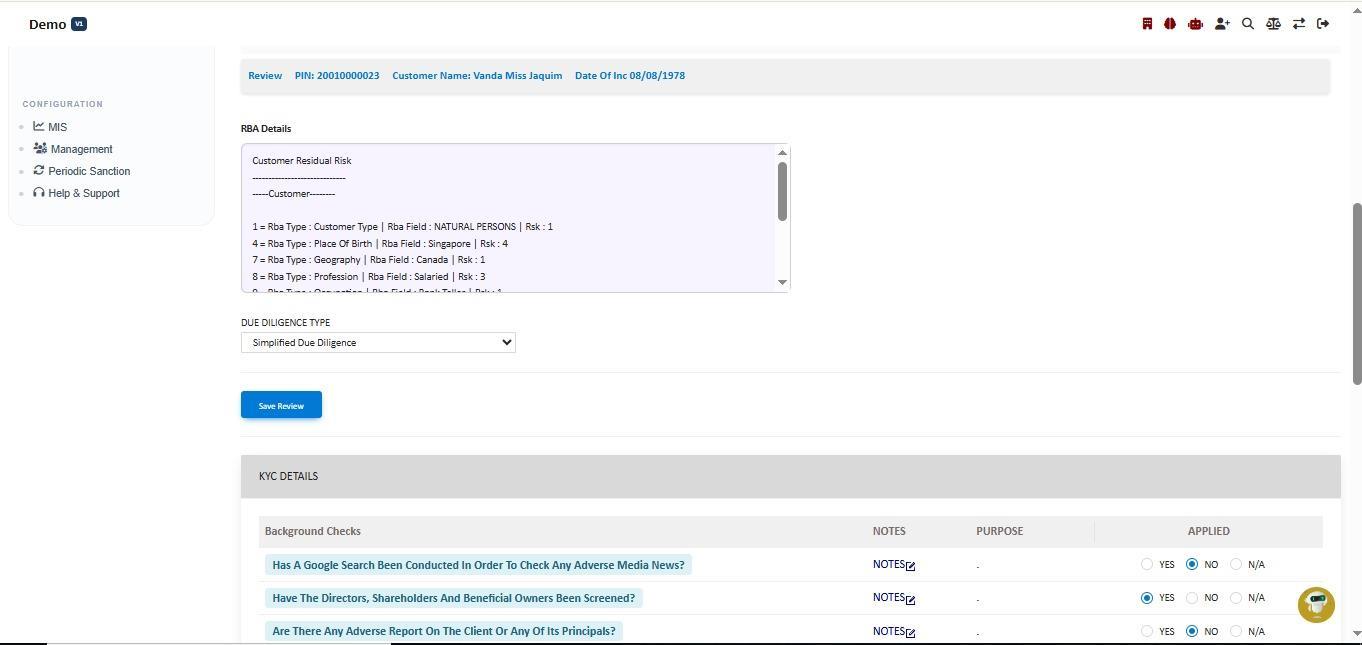
05
Risk-based assessment and background checks
Reviewer · RBA + KYC Details
Risk-based assessment and background checks

Reviewer opens a case to see the Risk-Based Assessment breakdown (customer type, place of birth, geography, profession scores) plus KYC Details — Google search, adverse-media, beneficial-owner screening — captured per question.

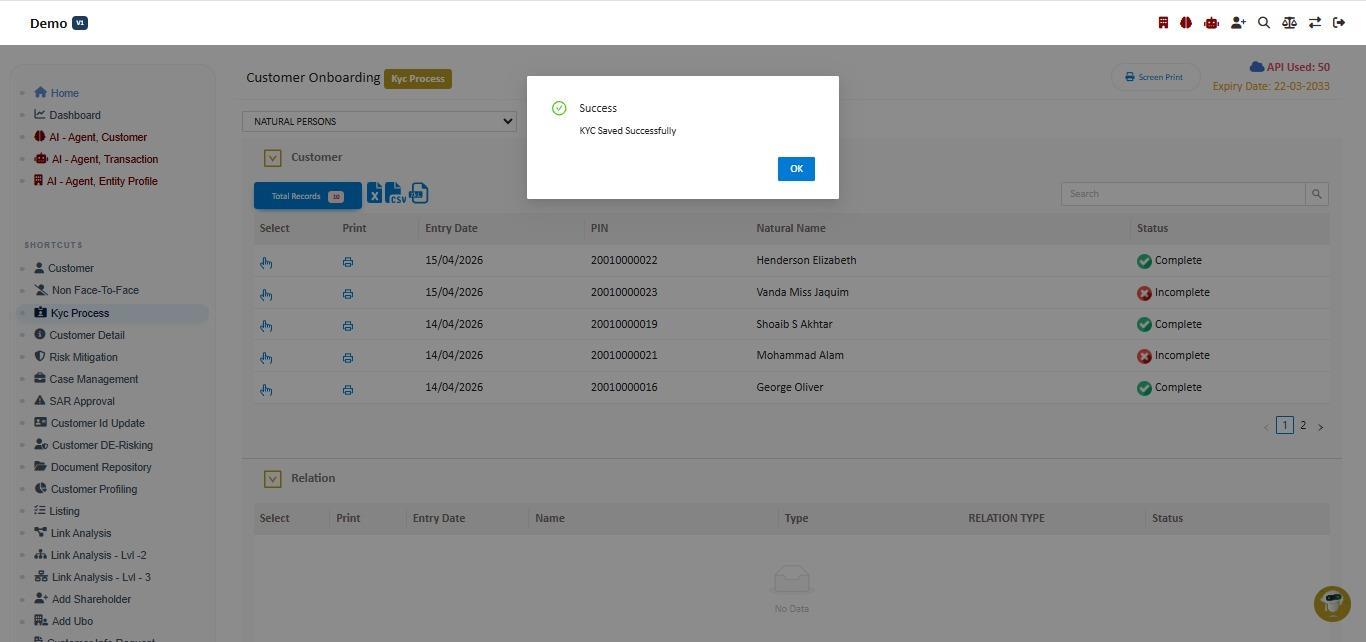
06
Decision committed to the ledger
Reviewer · KYC Saved
Decision committed to the ledger

Decision is committed and the KYC Saved Successfully modal confirms. Both the prior and the new state stay in the audit ledger with timestamps and reviewer ID — nothing is overwritten.

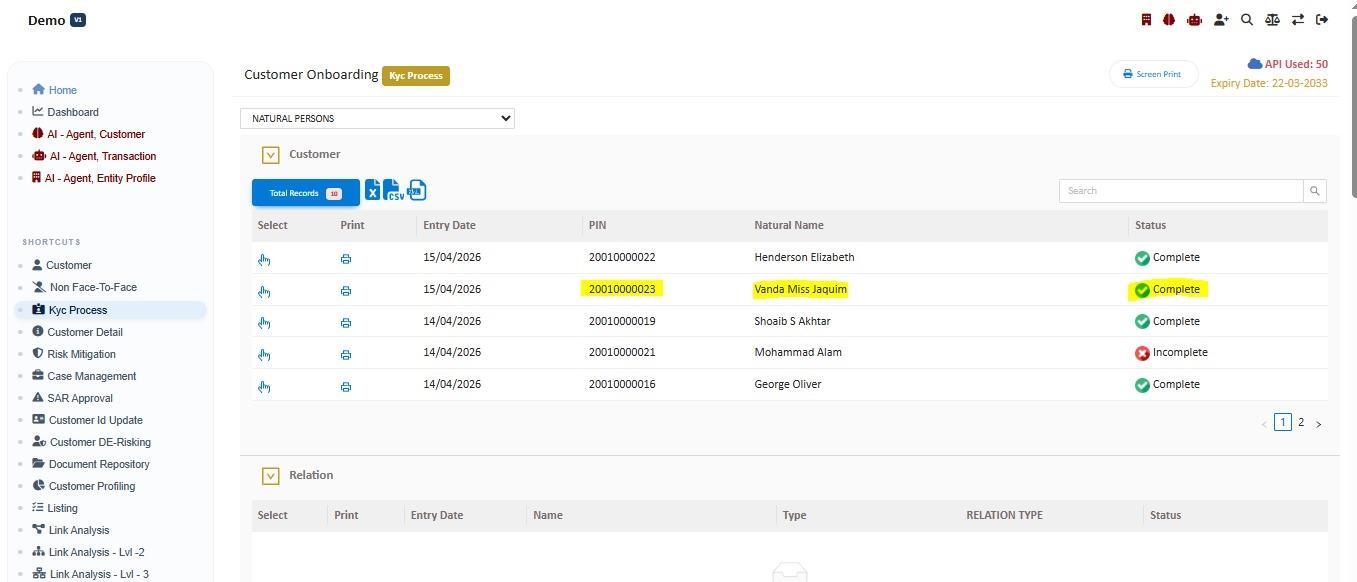
07
From Incomplete to Complete
Reviewer · Status flips to Complete
From Incomplete to Complete

Same KYC Process list, refreshed. The customer's status has flipped to Complete and the case is now eligible for downstream processes.

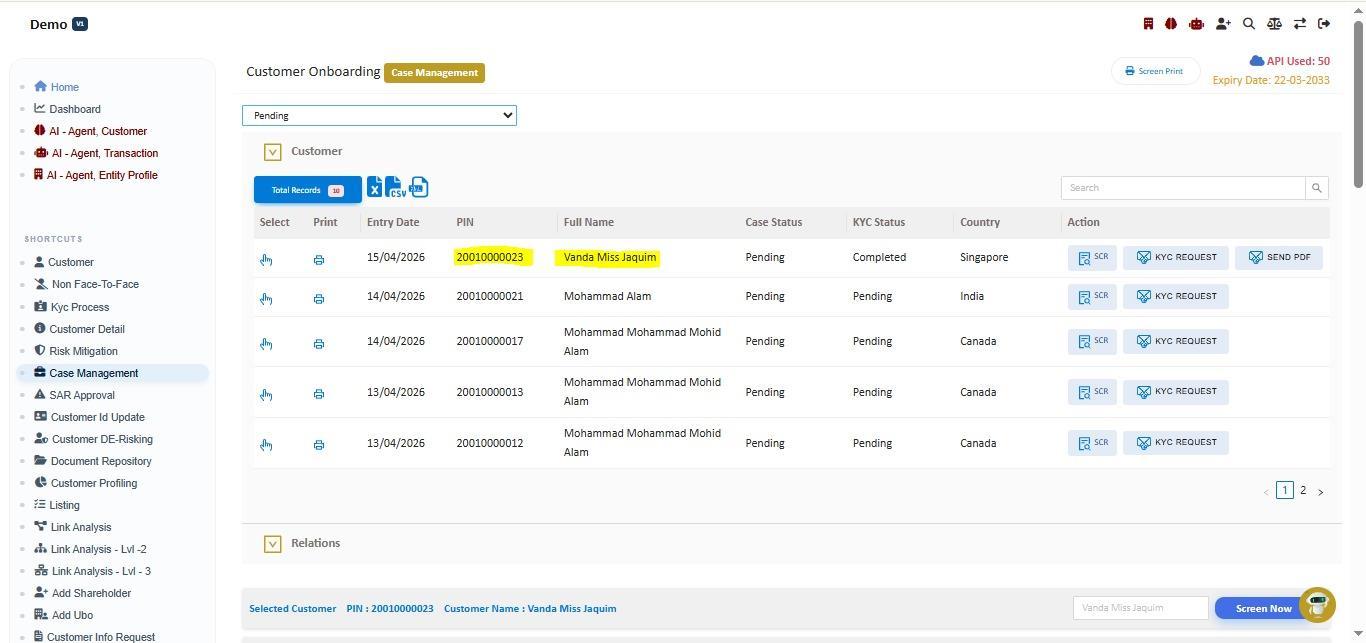
08
Re-screen, request KYC, send PDF
Reviewer · Case Management
Re-screen, request KYC, send PDF

Case-level actions: trigger a fresh KYC request, send the audit PDF to the customer, or re-screen against sanctions. API usage and licence expiry pinned to the header so operators always know where they stand.

09
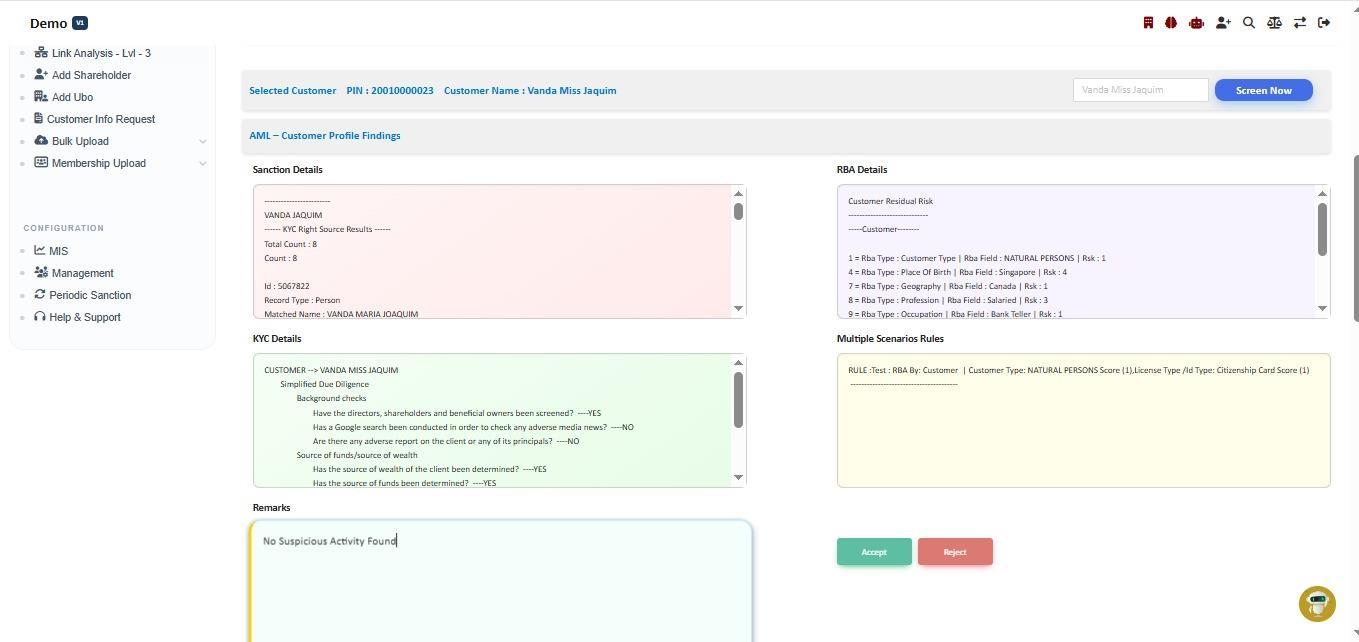
Sanction, RBA, KYC, scenario rules
Reviewer · AML Findings
Sanction, RBA, KYC, scenario rules

AML — Customer Profile Findings: sanctions screening results, RBA breakdown, KYC due-diligence answers and the scenario rules that fired. Reviewer types remarks and clicks Accept or Reject — both routes are logged.

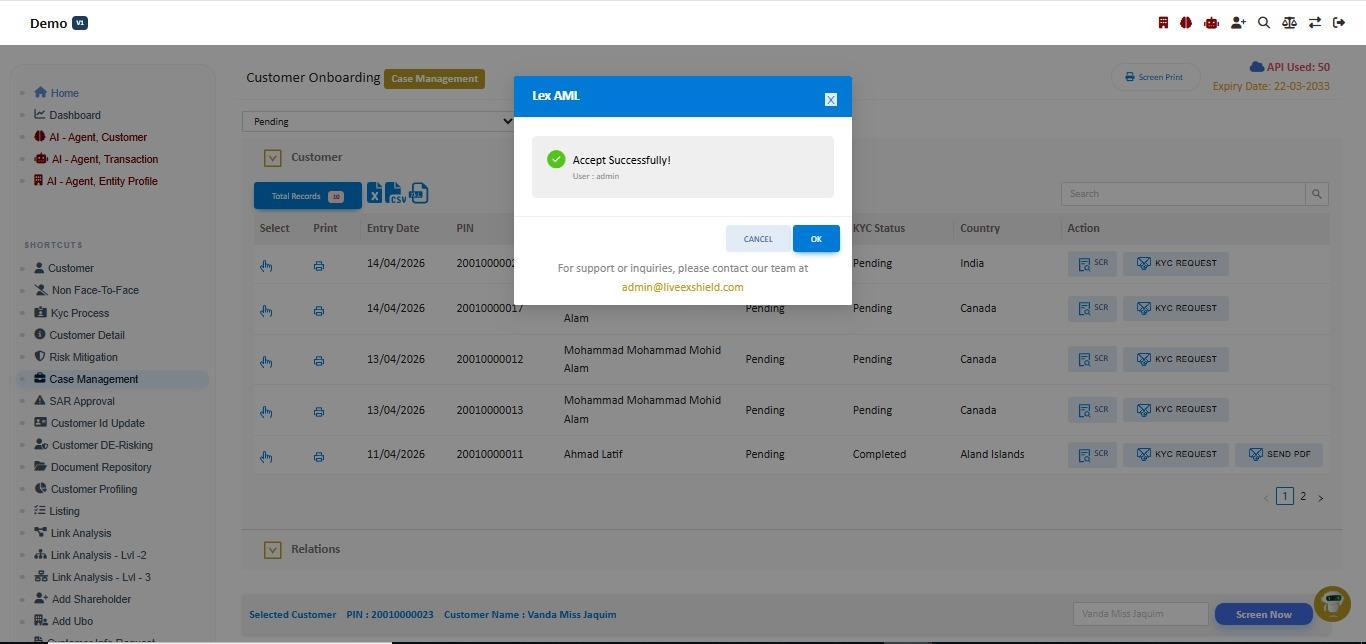
10
Final decision logged
Reviewer · Accept Successfully
Final decision logged

Once accepted, the customer record becomes available for transaction monitoring, periodic review and SAR / STR workflows downstream. Lex AML modal stamps the user and offers the support email for any post-decision query.

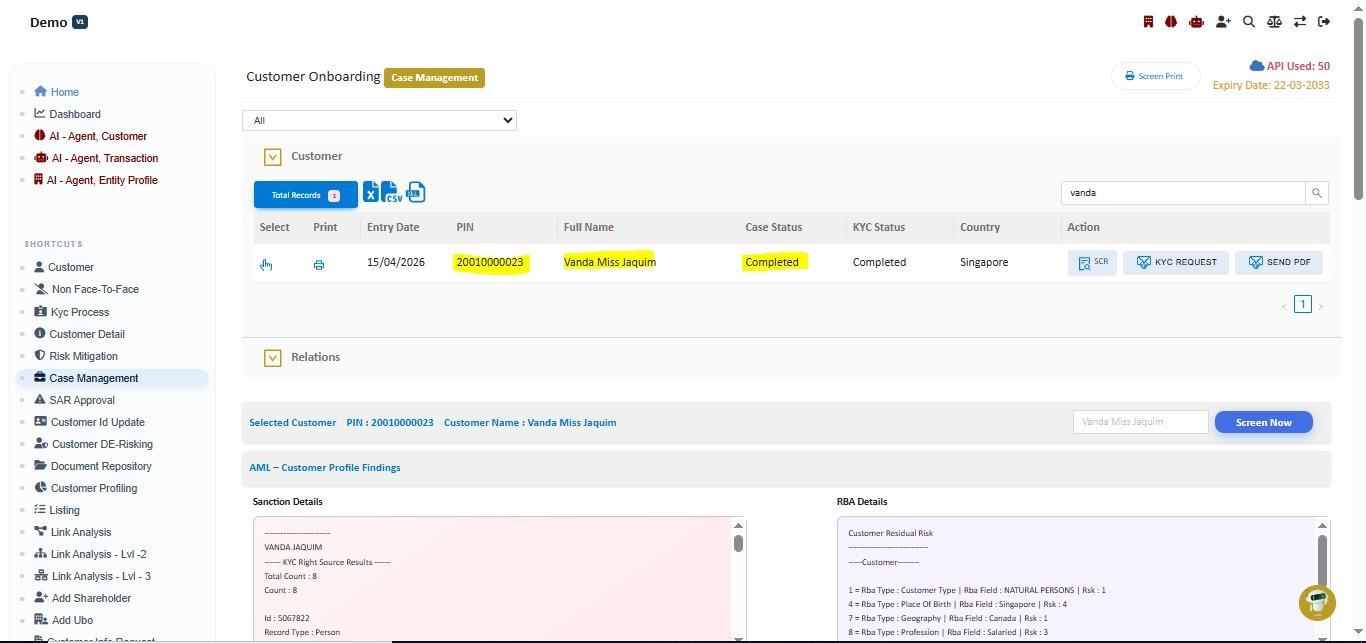
11
Case Status: Completed
Reviewer · Case Completed
Case Status: Completed

Filtered Case Management view showing the same customer fully through the pipeline — Case Status Completed, KYC Status Completed. The record now flows into TMS and periodic-review surfaces.

Two-Portal Architecture

One platform. Two perspectives.

The customer never sees the compliance machinery. The reviewer never sees a draft form. Both portals share the same database, the same audit log, the same case ID.

Customer-facing

Digital Onboarding Portal

Phone-first journey customers complete on their own. OTP-verified intake, smart address capture, and the KYC document flow shown above.

  • OTP-verified email + mobile
  • Smart address with geolocation
  • PEP & third-party self-declarations
  • Source-of-funds capture
  • 3-step KYC with liveness selfie
  • Submission email confirmation
Back-office

Reviewer Portal & Case Manager

Where your KYC team lives. Each submission lands as a case with status, evidence, risk band and analyst notes.

  • Live submission queue with SLAs
  • Side-by-side document + form review
  • Approve / return / escalate flow
  • Profession-based risk profiling
  • Status tracking & KYC completion visibility
  • Tamper-evident audit ledger
Capabilities

Nine features that make non-face-to-face actually work.

Form, verification, review, compliance exceptions, notifications, audit trail, regulator inspection — out of the box.

OTP-verified intakeEmail OTP confirms a real address before Step 2. No fake-email signups.
Multi-step KYCDocument choice, capture, selfie liveness and optional evidence.
Automated emailsSubmission, activation, more-info-needed — every status reaches the inbox.
Back-office portalReviewer-facing surface for validation, approval and escalation.
Case managementEvery submission becomes a case with status, evidence, risk band and notes.
Status visibilityCustomer sees where they are; reviewer sees the queue. Both update live.
Smart addressGeolocation + structured fields. Clean data, not free text.
PEP / third-partySelf-declarations wire into the risk engine and route to enhanced review.
Risk profilingJob + industry + purpose feed risk-band calculation, no manual step.
Back Office

The case manager your reviewers will thank you for.

Every submission becomes a case with a status, an SLA timer, and an evidence packet ready to read.

Submitted
Auto-acked
Under Review
L1 triage
Compliance
PEP · sanctions
4-eyes Review
High-risk only
Decision
Approve / return / escalate
Regulatory Alignment

Built for FATF Recommendation 10.

Every field, every consent, every audit entry maps to a published expectation.

FATF Rec. 10
Customer due diligence with reliable independent source documents; enhanced measures for non-face-to-face relationships.
FINTRAC
PCMLTFA identification by credible source; audit packet exportable on demand.
FinCEN / BSA
CIP — verification before account opening; recordkeeping retention.
FCA
SYSC 6.3 · JMLSG guidance on electronic verification.
EU 6AMLD
Extra-territorial scope · corporate criminal liability.
MAS Notice 626
Singapore AML / CFT with specific provisions for non-face-to-face onboarding.
Sandbox Available

Run a real onboarding with your test data.

Sandbox tenant with your branding, your jurisdiction's risk-band rules, and your document templates. Onboard a fake customer end-to-end in under twenty minutes.